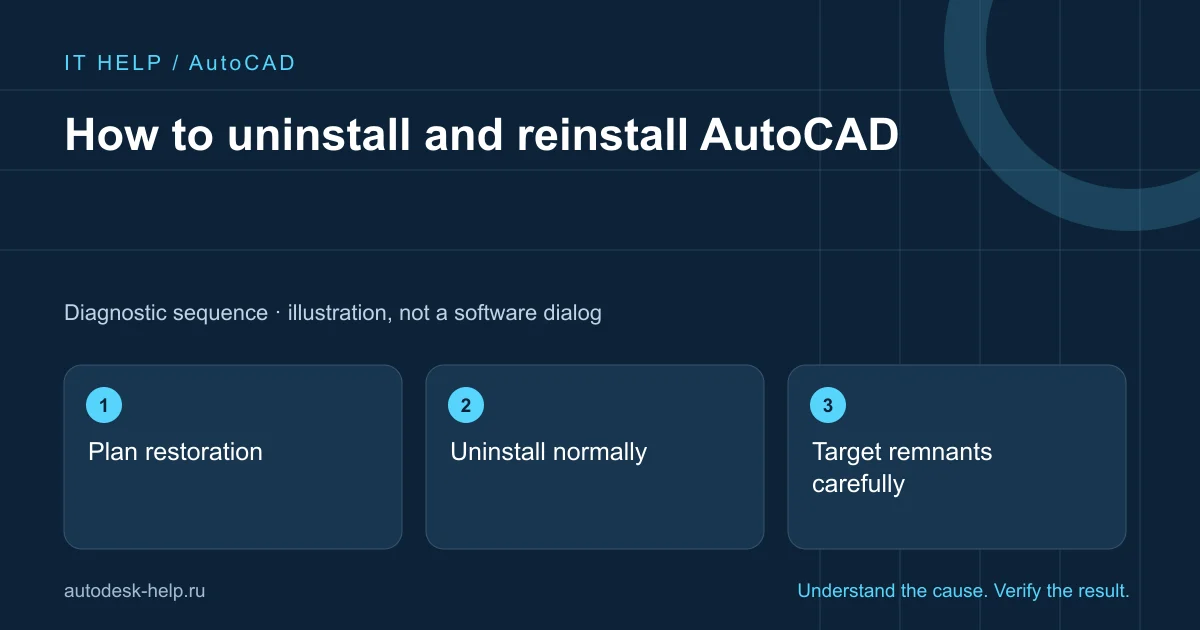
Plan restoration
Record release, updates, plugins and sign-in method. Back up settings and obtain the authorised installer first.
Uninstall normally
Use Windows apps and keep errors rather than deleting the program folder.
Target remnants carefully
Follow the product-specific procedure and account for other Autodesk applications.
Test before customising
Create, save and reopen a drawing, then restore plugins and settings one at a time.
What to prepare for support
A clear description helps select the next check before connecting. Send the product year, Windows version and full error screenshot with personal details hidden. For a file issue, say whether other projects behave the same way.
- What happened immediately before the fault?
- Does it affect one project or the whole application?
- Which steps have you already tried, and what changed?
We agree the scope and cost before an AnyDesk or RuDesktop session. You keep control of the connection and enter account credentials yourself.
Describe the problem ↗Technical reference
Product requirements and repair procedures vary by release. This guide explains initial checks; use the vendor instructions for your exact environment.